
| Warning |
|---|
Draft for review. This page is under review before the Operational Readiness Review. Panels marked as open questions are still waiting for an answer. Send corrections to the Research Platform team. |
| Info |
|---|
Read time: 6 minutes. Short version: JupyterLab has a built-in AI assistant. You choose which AI model it talks to. You can bring your own, buy a GitHub Copilot seat through the Science Cloud, or ask to join the pilot for the Science Cloud's own model. |
...
An LLM (large language model) is the AI model that answers. Notebook Intelligence is the part in JupyterLab; the LLM is the brain it talks to. You choose the brain.
What it can do
| Feature | What it means for you |
|---|---|
| Chat | Ask a question in a side panel and get an answer about your code or your data |
| Inline completion | It suggests the rest of the line or block as you type |
| Agent mode | It can create a notebook, edit cells, and run them for you |
| Tools (MCP) | It can use extra tools you give it, such as a data-catalog search |
| Approval step | For actions that change things, it asks you first |
| Multimedia | ||||
|---|---|---|---|---|
|
Notebook Intelligence at work, recorded in a live workspace.
Examples
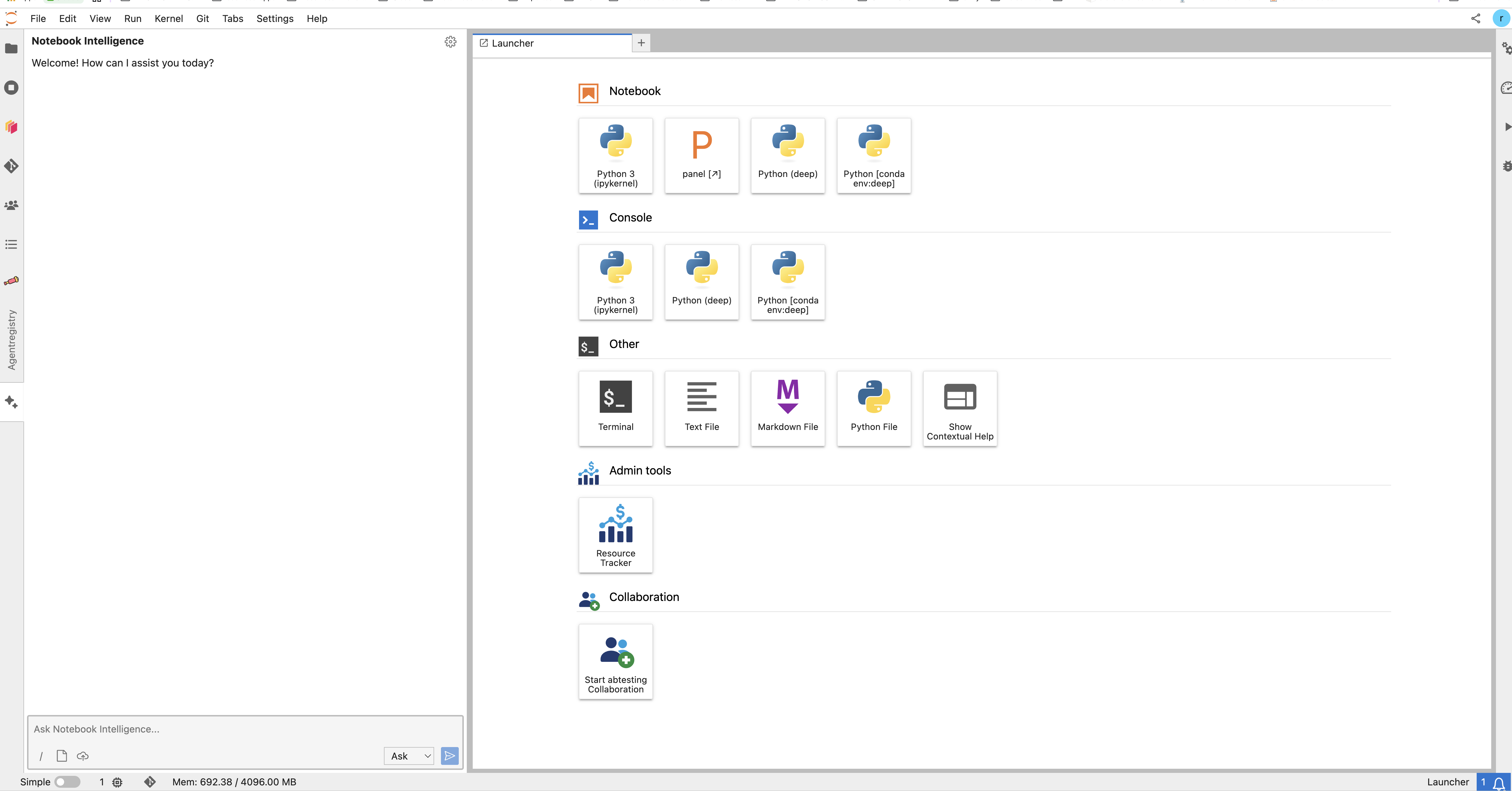
The chat panel. The mode selector next to the send button chooses between asking and acting.
...
Your three ways to get a model
| Way | What you do | Who pays |
|---|---|---|
| 1. Bring your own | Use your own licence or API key from a provider | You or your project, direct to the provider |
| 2. GitHub Copilot through the Science Cloud | Ask the Science Cloud for a Copilot subscription | Through the Science Cloud |
| 3. Skippy — the Science Cloud's own model | Ask to become a pilot user | The Science Cloud |
| Warning |
|---|
Skippy is in pilot. The Science Cloud's internal model, Skippy, is not a general service yet. It is running as a pilot. Ask |
...
Notebook Intelligence supports these provider types:
| Provider | Notes |
|---|---|
| GitHub Copilot | Sign in with your GitHub account |
| OpenAI-compatible | Any service that speaks the OpenAI API — this is the setting to use for most hosted models, and for the Science Cloud's own endpoint |
| LiteLLM-compatible | For a LiteLLM gateway |
| Ollama | Models running locally, in your own workspace |
| Anthropic Claude | Through the Claude Code command-line tool, in Claude mode |
How to connect a model
- In JupyterLab, open the assistant's chat panel.
- Click the gear icon. (Or use Settings → Notebook Intelligence Settings.)
- Choose the provider type from the list above.
- Fill in what it asks for — usually a model name, an address, and an API key.
- Save. Then ask the assistant a question to check it works.
...