Read time: 6 minutes. For project admins — the person who runs a project and its money. Address: |
RPAdmin is the web console for running your project. It is called the Research Platform Admin Console on screen.
From it you manage your members, cap what each of them can spend, watch the project's cost, switch collaboration on, and connect your own AWS account. Nearly all of it is self-service — you do it yourself, with no ticket to the platform team.
Only project admins. Ordinary researchers do not use RPAdmin. They see their own usage inside JupyterLab instead, in the Resource Tracker panel.
The menu down the left side is grouped:
| Group | Entries |
|---|---|
| Workspace | Dashboard · My Usage · Projects · Cost & Budget |
| Administration | Create Project · FinOps · Users |
| Operations | Health Checks · Audit Events · Keycloak Sync · Spawn Events · Application Logs |
Some of those entries belong to the platform team, not to you. Create Project is one of them. What you can open depends on your role.
Open Projects, then your project, and you get everything below on one page.
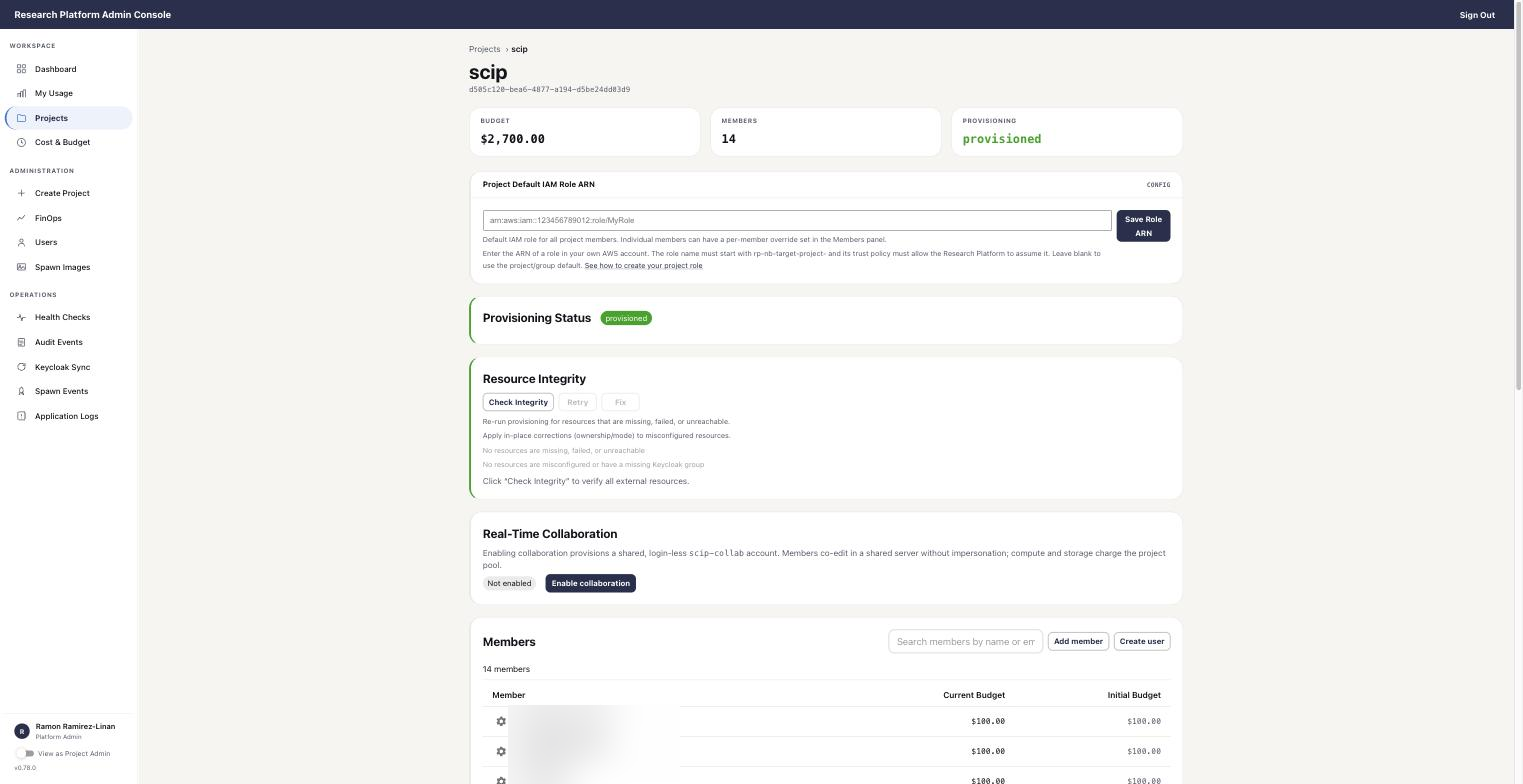
A project's page: the IAM role panel, provisioning, integrity, collaboration, and the members list. Member names are blurred.
The Members panel lists everyone on the project.
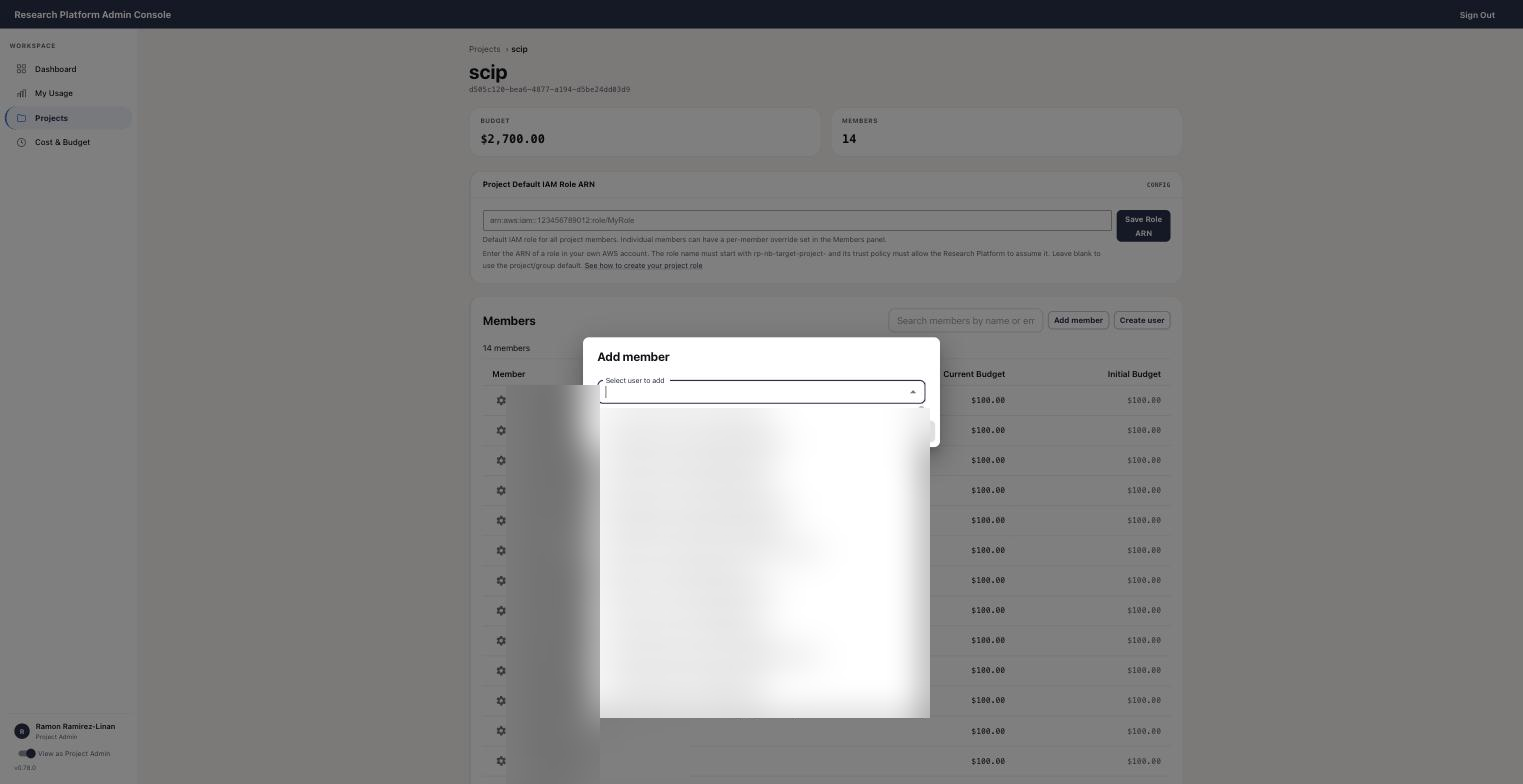
Add member: pick the user from the list. Names are blurred.
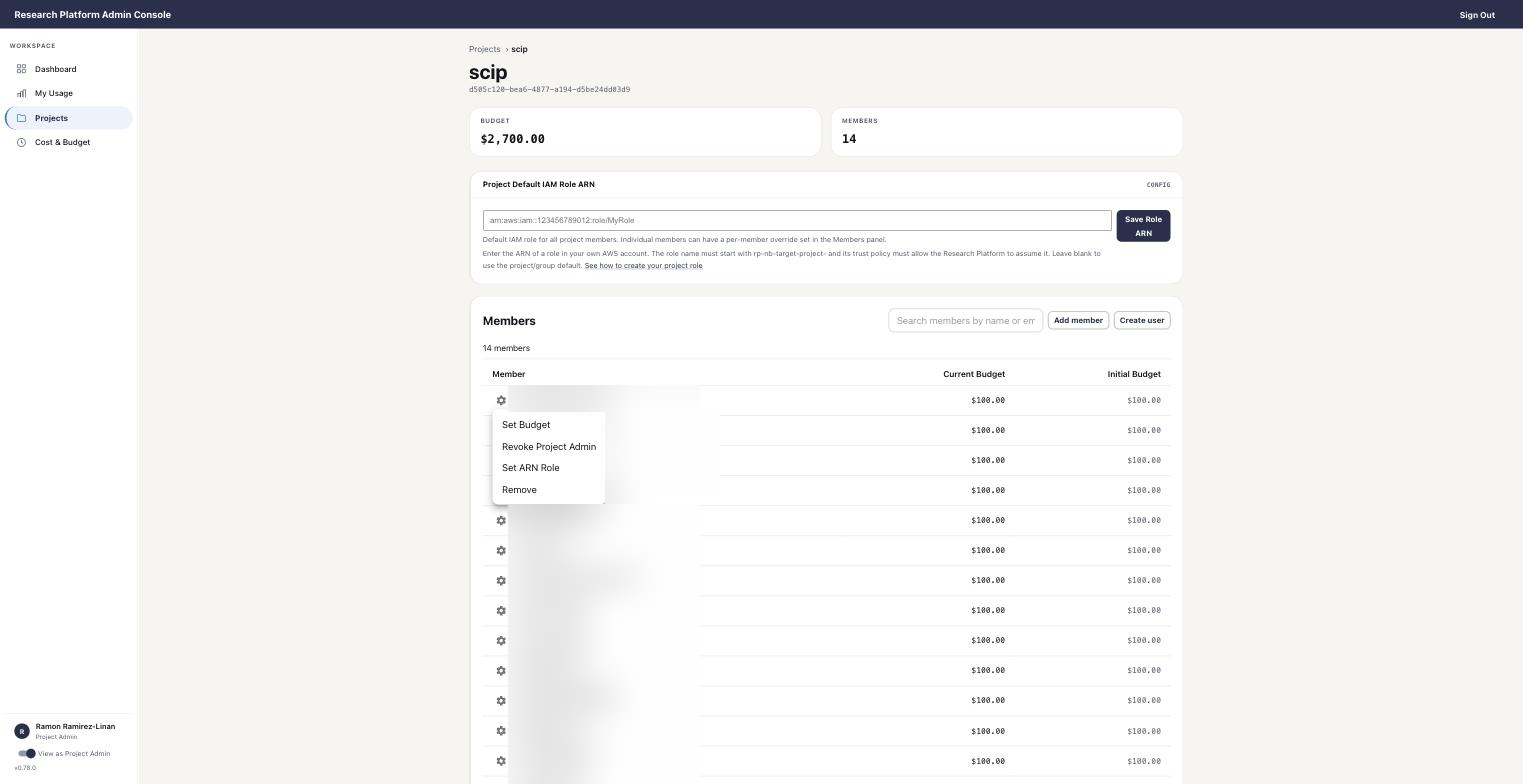
The gear menu on a member: Set Budget, Revoke Project Admin, Set ARN Role, Remove.
A member must already have a NASA identity or a STAR ID. See How to get access.
Each member row shows a Current Budget and an Initial Budget. A new member starts as Not allocated.
You set a budget per member. Think of it as a spending limit for that person, cut out of the project's money. The console stops you from handing out more than the project holds.
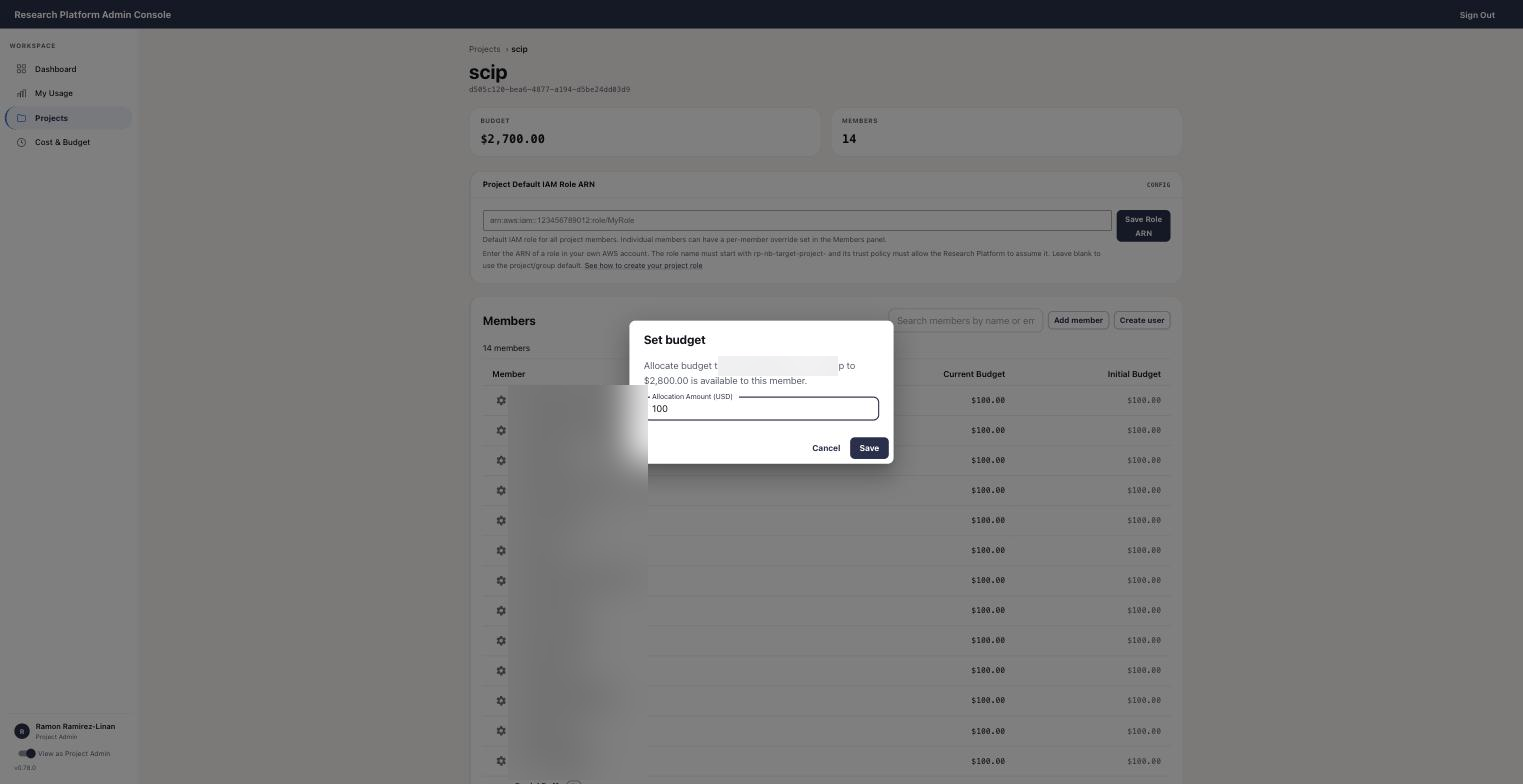
Set budget: the dialog tells you how much is still available for this member.
Today the limit is a warning, not a wall. A member who reaches their limit can still launch a workspace. Watch the numbers, and talk to the person. Coming: you will choose what happens when a member passes their limit — block them from launching, or let them keep working and spend from the project's pool. |
Cost & Budget shows the project's compute hours, compute cost, storage cost, and what is left. Each member sees only their own figures, inside JupyterLab.
The Real-Time Collaboration panel has one button: Enable collaboration.

The Real-Time Collaboration panel, before collaboration is enabled.
The console explains what it does: enabling it creates a shared, login-less <project>-collab account. Members co-edit in that shared workspace, with no impersonation — nobody works as anybody else. Compute and storage charge the project pool.
That last point is why this is your decision and not a member's. Full detail: Working together on the same notebook.
This has been reviewed and approved by the ISSO. It is being switched on across all projects. If your project has no such panel yet, ask support@sciencecloud.nasa.gov.
The Project Default IAM Role ARN panel lets your project reach your own AWS account from notebooks on the platform. With it you can use any AWS service in your account — start an HPC cluster there, read a mission bucket, and so on. (HPC means high-performance computing: a large group of machines for heavy jobs. An IAM role is an AWS identity that grants a set of permissions. An ARN is the role's full address.)
Two rules, stated by the console itself:
rp-nb-target-project-.Paste the ARN and press Save Role ARN. Leave the box empty to use the project or group default.

The Project Default IAM Role ARN panel, with the two rules under the box.
The role you set here applies to every member. A single member can be given a different role in the Members panel.
The console itself carries the instructions: the "See how to create your project role" link opens a help page inside RPAdmin with the steps for your AWS administrator. If anything is unclear, write to support@sciencecloud.nasa.gov.
No keys are copied anywhere. The platform hands the role to the notebook when it starts. No secret is stored in a notebook.
Audit Events records every change to accounts, memberships, and budgets, with who did it and what changed. You see your own project's history.
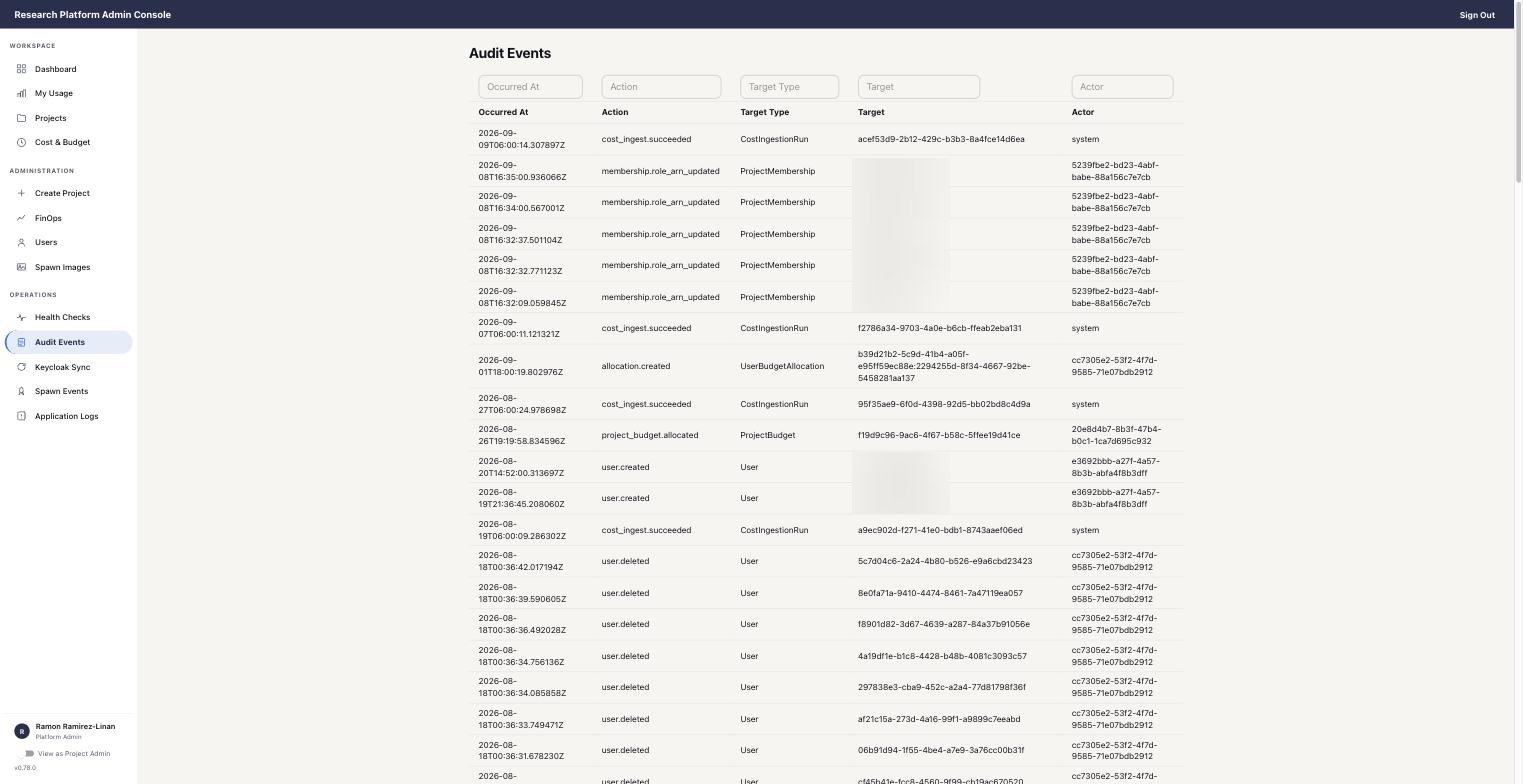
The Audit Events list: when, what action, what it touched, and who did it. Names are blurred.
| Action | Why |
|---|---|
| Create a project | A new project needs approval by Science Cloud finance and management first |
| Set the project's total budget | The number is entered after the Science Cloud receives the funds |
| Platform-wide operations | Keycloak Sync, Spawn Events, Application Logs, fleet health |
So the money works in two steps:
I need a new project. What do I do? Email support@sciencecloud.nasa.gov. See How to get access.
My project needs more money. Same email. The funds must arrive at the Science Cloud before the budget can be raised.
Can I take a member off the project? Yes, in the Members panel. Their allocation is released at the same time.
Can I promote a member to project admin? Yes. You do not need the platform team.
A member says they cannot start a workspace. Check their budget row, check Provisioning Status, and run Check Integrity. If it still fails, send us the project name and the member's name.
Do members see the cost figures? Each member sees their own usage and remaining budget in JupyterLab. The whole project's picture is yours.