Read time: 5 minutes. Short version: your project gets one shared session. Everyone who opens it edits the same files at the same time. Save your work in |
Real-time collaboration lets several members of a project edit the same notebook, code file, or document at the same time — the way several people edit one online document.
You see who else is in the session. You see the changes as they happen.
The platform does not let one person hand over their own workspace. Instead, your project gets a separate shared workspace for collaboration.
| Your own workspace | The shared session | |
|---|---|---|
| Who can enter | Only you | Every member of the project |
| Whose files | Yours | The project's |
| Runs as | You | A shared project account |
Why it is built this way. If a colleague joined your workspace, they would get your private files, your data access, and the right to run code as you. The shared session avoids all of that. Nobody enters your private space. Nobody acts as you.
In your Launcher, under Collaboration, you see a tile named "Start <project> Collaboration" — where <project> is the project you chose on the launch screen.
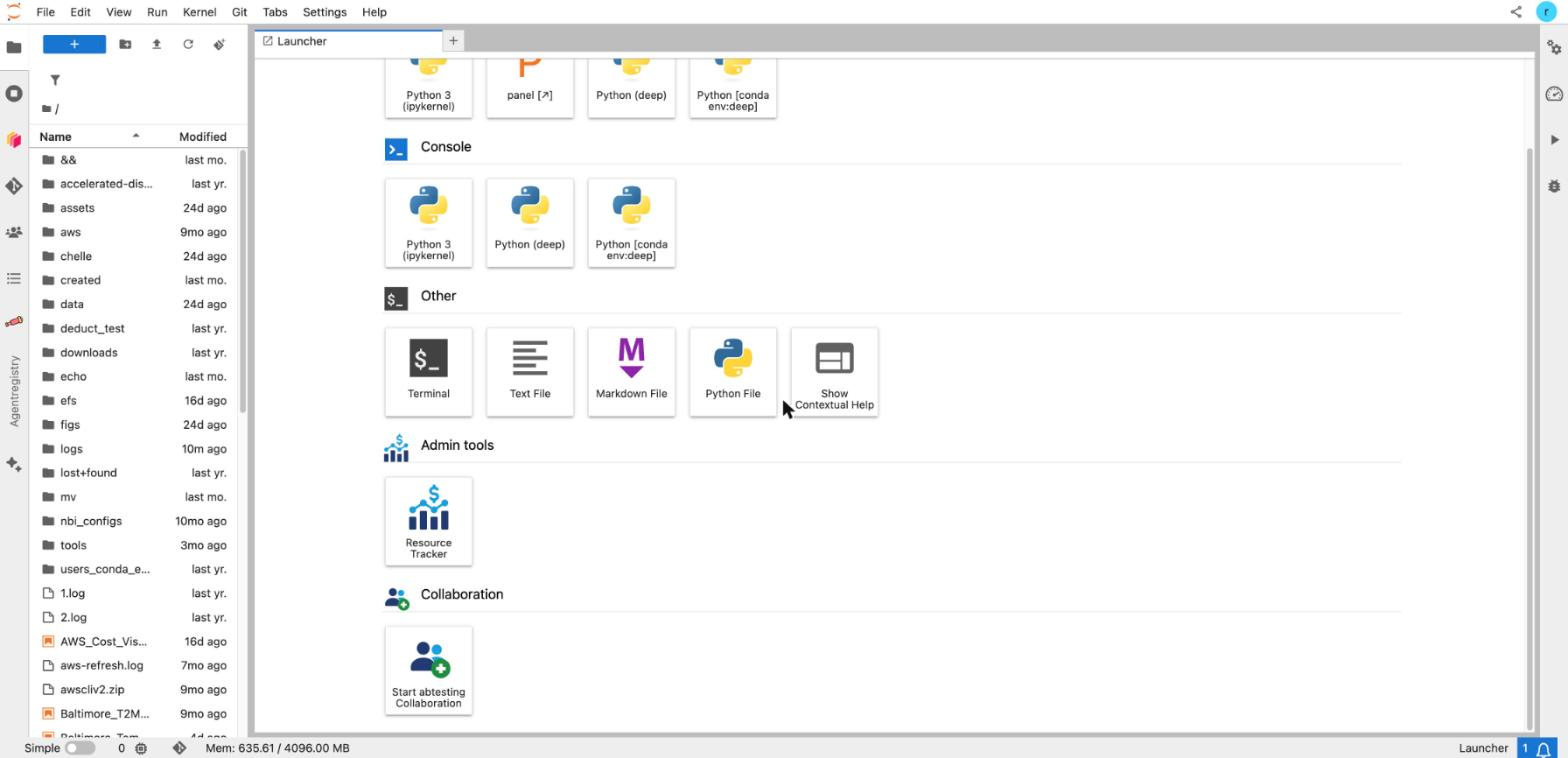
The Collaboration tile in the Launcher, before the session starts.
If you do not see it, your project does not have collaboration yet. See Getting it turned on.
The shared session starts. Everyone else in the project clicks the same tile and lands in the same session.
Open a notebook and type. Others see your changes. A panel in the left sidebar shows Online collaborators — who is in the session right now.
This is the one mistake to avoid. Save your files in |
Click the tile again. It now reads "Stop <your project> Collaboration". Confirm, and the shared machine stops.
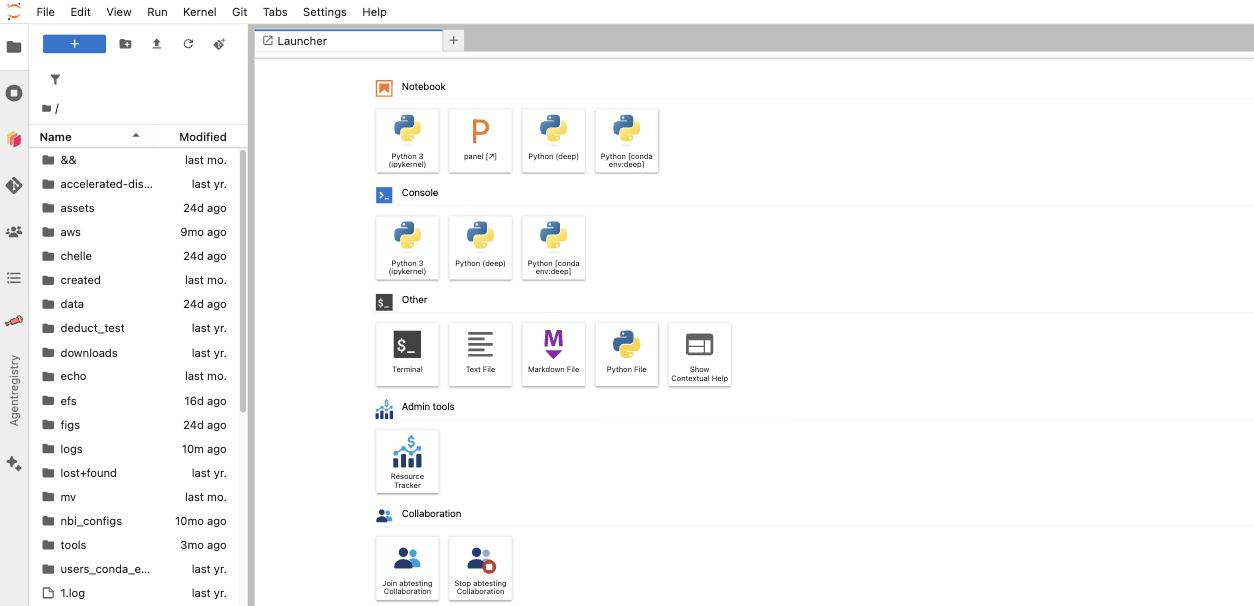
While the session runs, the Launcher shows two tiles: Join, and Stop.
The shared session is charged to the whole project, not to the person who opened it. That is why turning collaboration on is a project decision.
An idle session is closed automatically after about an hour. Do not rely on that — an open browser tab can keep the session looking busy for hours. So stop it on purpose when the group is done.
Your project admin enables collaboration in the RPAdmin console. It is their decision, because the shared session spends the project's money, not one person's.

The Real-Time Collaboration panel on the project's page in RPAdmin.
Being rolled out. Collaboration is being switched on project by project, and the goal is to have it available to every project soon. If the tile is missing, or it appears but the session will not start, ask the platform team: |
When someone leaves the project, their access to the shared session ends automatically.
Three honest limits.
1. You can see who is in, but not who typed what. The presence panel shows who is in the session. But because everyone works through one shared project account, the platform cannot tell you which person wrote a given line, or who created a given file. If you need that, use Git: commit from your own workspace under your own name.
2. The number of people who can edit at once has not been measured. Small groups work. Nobody has tested where the limit is. If your group is large, tell the platform team what you are planning.
OPEN: run a test with a realistic group size and record the result here. |
3. The machine size of the shared session is not something you choose today.
OPEN: confirm what machine the shared session runs on, and whether the person who starts it can pick the size. Not confirmed yet. |
Can I collaborate with someone outside my project? No. Only members of the project can enter its shared session.
Do I lose my own workspace while collaborating? No. Your own workspace is separate and keeps running. You can have both open.
Who stops the session? Anyone in the project can, with the same tile.
Is the shared session's home folder safe to use? It stays between sessions, but only people inside the shared session can reach it. Put anything you care about in /efs/<your project>.