
Overview
The Science Cloud uses a centralized Identity and Access Management system. This system provides users a single Science Cloud identity to access all of their AWS accounts through a new single sign-on (SSO) workflow.
...
AWS Console Login Experience
NASA Users
If you have a NASA identity, once you are notified that your Science Cloud identity is ready, your AWS Console login process will be:
- Navigate to the access portal link: http://aws.sciencecloud.nasa.gov/
- Log in using your @nasa.gov email address
- You will be prompted to authenticate using your PIV credentials via Launchpad
- Once authenticated, you'll be redirected to the AWS Access Portal
NASA Collaborators
If you do not have a NASA identity, once you are notified that your Science Cloud identity is ready, your AWS Console login process will be:
- Navigate to the access portal link: http://aws.sciencecloud.nasa.gov/
- Enter the email address you were invited to the Science Cloud with (this email address will be specified when you are notified that your Science Cloud identity is ready)
- Follow login prompts
- Complete multi-factor authentication (MFA) preferably using Microsoft Authenticator
- If this is your first time logging in, you'll be guided through setting up MFA. The Science Cloud team supports Microsoft Authenticator for MFA.
- Once authenticated, you'll be redirected to the AWS Access Portal
...
AWS Access Portal
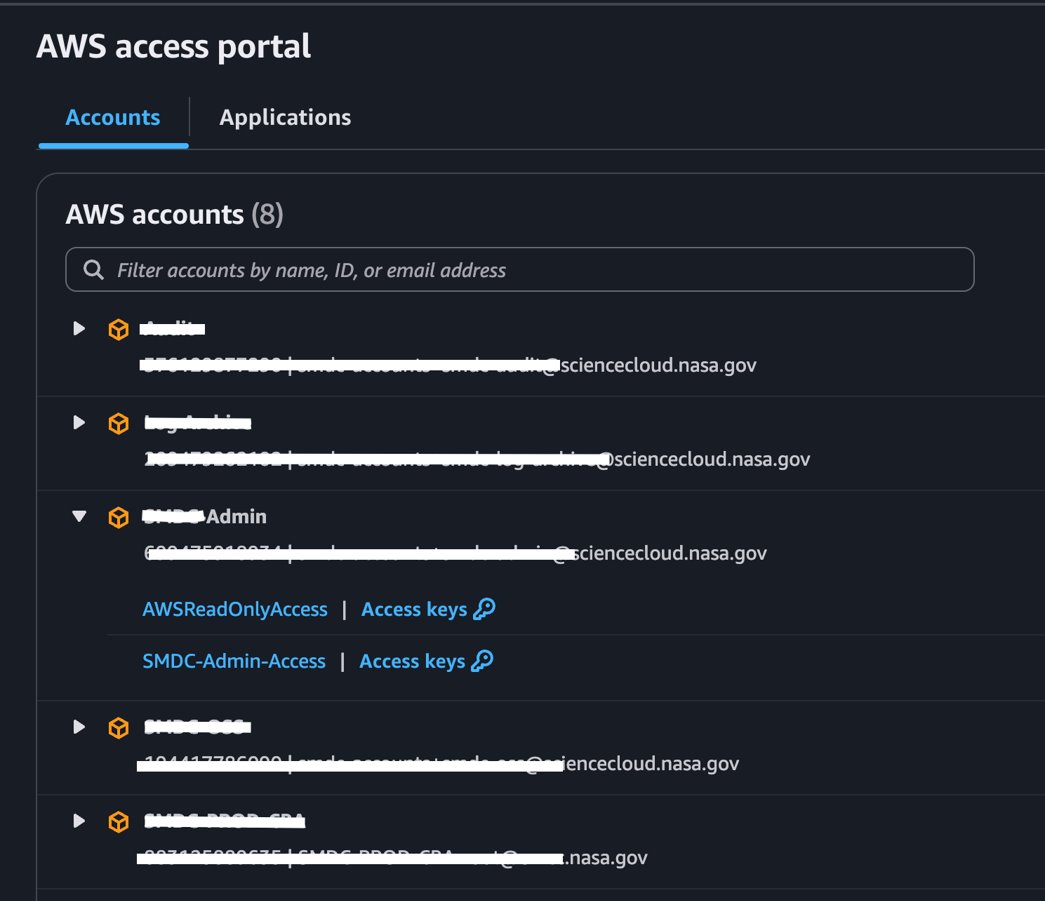
After successful authentication, you'll land on the AWS Access Portal - your central hub for accessing AWS resources.
What you'll see:
- A list of AWS accounts you have permission to access
- Available roles for each account based on your assigned permissions
How to access your Science Cloud AWS account:
- Select the AWS account you want to access
- Choose the appropriate role
- Click to launch the AWS Management Console or use programmatic access options
...
Session Duration for Standard Science Cloud Roles
| Role | Session Duration |
|---|---|
| Project-Admin | 2 Hours |
| Project-Power-User | 8 Hours |
| Project-Read-Only | 12 Hours |
...
Programmatic Access to AWS
In addition to using the AWS Management Console through the portal, you can also access AWS programmatically using the AWS CLI and SDKs. There are two main approaches:
Option 1: AWS CLI SSO Integration (Recommended)
For seamless, long-term programmatic access, configure the AWS CLI to work directly with IAM Identity Center:
Initial Setup
Important: Before proceeding, remove any
Login Workflow
There will be a single URL to access all Science Cloud AWS accounts via SSO (Single-Sign-On). NASA users automatically use PIV authentication via Launchpad to login. However, non-NASA users will use a combination of their native login workflow and a Science Cloud specific Microsoft Authenticator.
Activating the AWS access portal for first-time IAM Identity Center users
You should receive an email with the subject Invitation to join AWS IAM Identity Center, open it and choose Accept invitation. On the New user sign up page, enter and confirm a password, and then choose Set new password. You will use that password each time you sign in to the portal. After you activate your user credentials by providing a new password, the AWS access portal signs you in automatically.
AWS Access Portal
Logging in through the AWS Access Portal will provide you access to all your assigned Science Cloud AWS Accounts. You can choose permissions needed for session and generate short term access keys via the portal.
AWS SSO login directly via the AWS CLI
Configure your sso-session section with aws configure sso-session wizard
...
existing aws_access_key_id and aws_secret_access_key related to your AWS account from your ~/.aws/
...
credentials file.
Example SSO session & named profile usage
1. Configure the SSO Session:
Configure SSO Session
- Set up the SSO session:
aws configure
...
sso-session- Enter the required details:
...
- SSO session name:
...
- your-memorable-
...
- sso-name (choose a memorable name)
- SSO start URL
...
- : https://
...
- d-9067c5bbc5.awsapps.com/start/#
- SSO region
...
- :
us-east-1 - SSO registration scopes
- :
...
- :
sso:account:access
- :
...
2. Set Up a Named Profile: - CHECK HOW PROFILE NAMES ARE DETERMINED (IF AT ALL)
Configure Profiles
You can create profiles for each AWS account/role combination you need to access:
aws configure ...
ssoProvide the following information:
- SSO session name:
...
SSO start URL [None]: https://my-sciencecloud-sso-portal-exampleURL.awsapps.com/start
SSO region [None]: us-east-1
SSO account ID [None]: 123456789012
-
your-memorable-sso-name(same as above) - SSO account ID: The 12-digit AWS account ID
- SSO role name: The role name you want to assume (e.g., Project-Admin, Project-Power-User, Project-Read-Only)
...
- CLI default client Region
...
- :
us-east-1(or your preferred region) - CLI default output format
...
- :
json
3. Example: How to Use a Profile:
$ aws s3 ls --profile ScienceCloudProject-devAccount
The CLI will authenticate via SSO and list your S3 buckets (example use case)
Manually configure the config file to create additional profiles
If you access multiple AWS accounts or roles through AWS IAM Identity Center (SSO), you don’t want to repeat the same sso_start_url and sso_region in every profile. Instead, define the SSO session once and reference it. This will allow your to use multiple profiles on the same session, specify environment roles, region and output settings. The sso-session section of the config file is used to group configuration variables for acquiring SSO access tokens, which can then be used to acquire AWS credentials. The following settings are used:
(Required) sso_start_url(Required) sso_regionsso_account_idsso_role_namesso_registration_scopes
You define an sso-session section and associate it to a profile. The sso_region and sso_start_url settings must be set within the sso-session section. Typically, sso_account_id and sso_role_name must be set in the profile section so that the SDK can request SSO credentials.
The following example configures the SDK to request SSO credentials and supports automated token refresh:
...
Profile name [default_provided]: (choose a memorable name)
Manual Configuration (Alternative)
You can manually edit ~/.aws/config:
[sso-session your-memorable-sso-name]
sso_region = us-east-1
sso_start_url = https://d-9067c5bbc5.awsapps.com/start/#

[profile your-memorable-profile-name-1]
sso_session = your-memorable-sso-name
sso_account_id = your-AWS-account's-numeric-accoun-ID
sso_role_name = your-role(e.g. Project-Power-User)
region = us-east-1
output = json

[profile your-memorable-profile-name-1]
sso_session = your-memorable-sso-name
sso_account_id = your-other-AWS-account's-numeric-account-ID
sso_role_name = your-role(e.g. Project-Read-Only)
region = us-east-1
output = json
Using SSO-Configured Profiles
1. Sign in to SSO:
aws sso login --profile your-profile-name
This will open your browser for authentication (same process as portal login).
2. Run AWS CLI commands:
aws sts get-caller-identity --profile your-profile-name
If you do no do not want to specify --profile your-profile-name for every command:
export AWS_PROFILE=your-profile-name
3. Sign out when finished:
aws sso logoutOption 2: Temporary Access Keys from the Portal
For quick, short-term programmatic access:
- Log into the AWS Access Portal using the steps above
- Select your desired AWS account
- Select 'Access keys' next to the role you want to use to access the AWS account
- Follow the instructions provided for the access key approach you want to use
Sign in to an IAM Identity Center session
Once your profiles are set up, in order to run commands, you will first need to Sign in to an IAM Identity Center session to request and retrieve your temporary credentials.
To retrieve and cache a set of IAM Identity Center credentials, run the following command for the AWS CLI to open your default browser and verify your IAM Identity Center log in.
$ aws sso login --profile ScienceCloudProject-devAccount
SSO authorization page has automatically been opened in your default browser.
Follow the instructions in the browser to complete this authorization request.
Successfully logged into Start URL: https://my-sciencecloud-sso-portal-exampleURL.awsapps.com/start
Your IAM Identity Center session credentials are cached and the AWS CLI uses them to securely retrieve AWS credentials for the IAM role specified in the profile.
Sign out of your IAM Identity Center sessions
When you are done using your IAM Identity Center profile, you can let your credentials expire or run the following command to delete your cached credentials.
$ aws sso logout
Successfully signed out of all SSO profiles.
External Resources
https://docs.aws.amazon.com/cli/latest/userguide/cli-configure-sso.html#cli-configure-sso-configure
Please provide feedback on these instructions, questions, concerns, or issues via email to support@sciencecloud.nasa.gov
...