
...
2) Create New IAM Role
On the EC2 Instance summary page, use the Actions->Security menu at the upper right and choose Modify IAM Role.
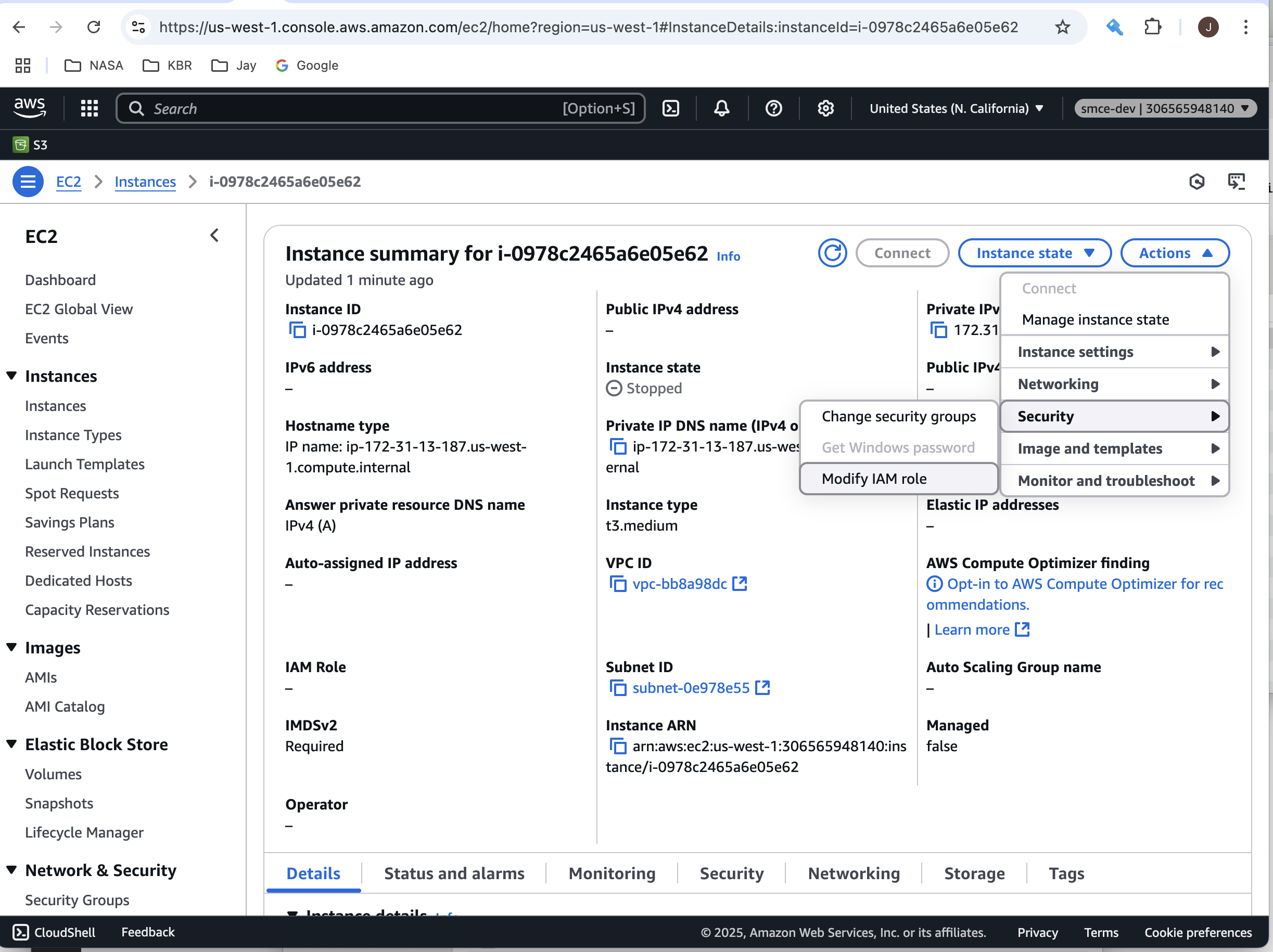
This will display the Modify IAM Role page. Choose the Create new IAM Role link to establish a new IAM Role for your instance.
...
3) Attach IAM Role
On the EC2 Instance summary page, use the Actions->Security menu at the upper right and choose Modify IAM Role.
This will display the Modify IAM Role page where you'll be able to choose a role to attach to your instance.
...
From the IAM Role dropdown, choose the a custom role you created, and then select the Update IAM role button to save the changes.
The EC2 Instance Summary page will be re-displayed with the newly selected IAM role shown, along with a confirmation message about the changes.
...
4) Review Permissions Policies
To view the underlying Permissions Policies that are required in your custom IAM Role, click on the link on the EC2 Instance summary page.
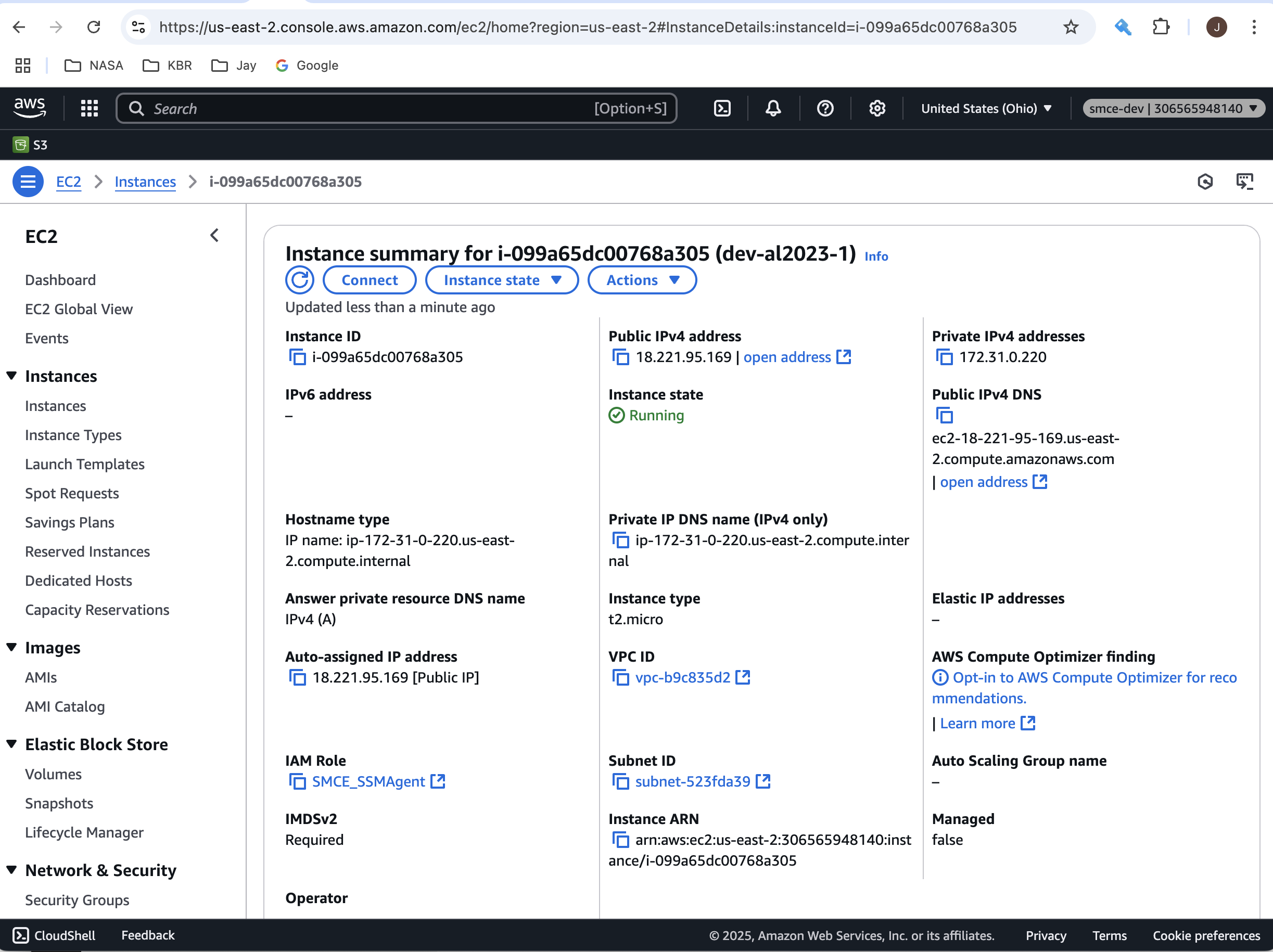
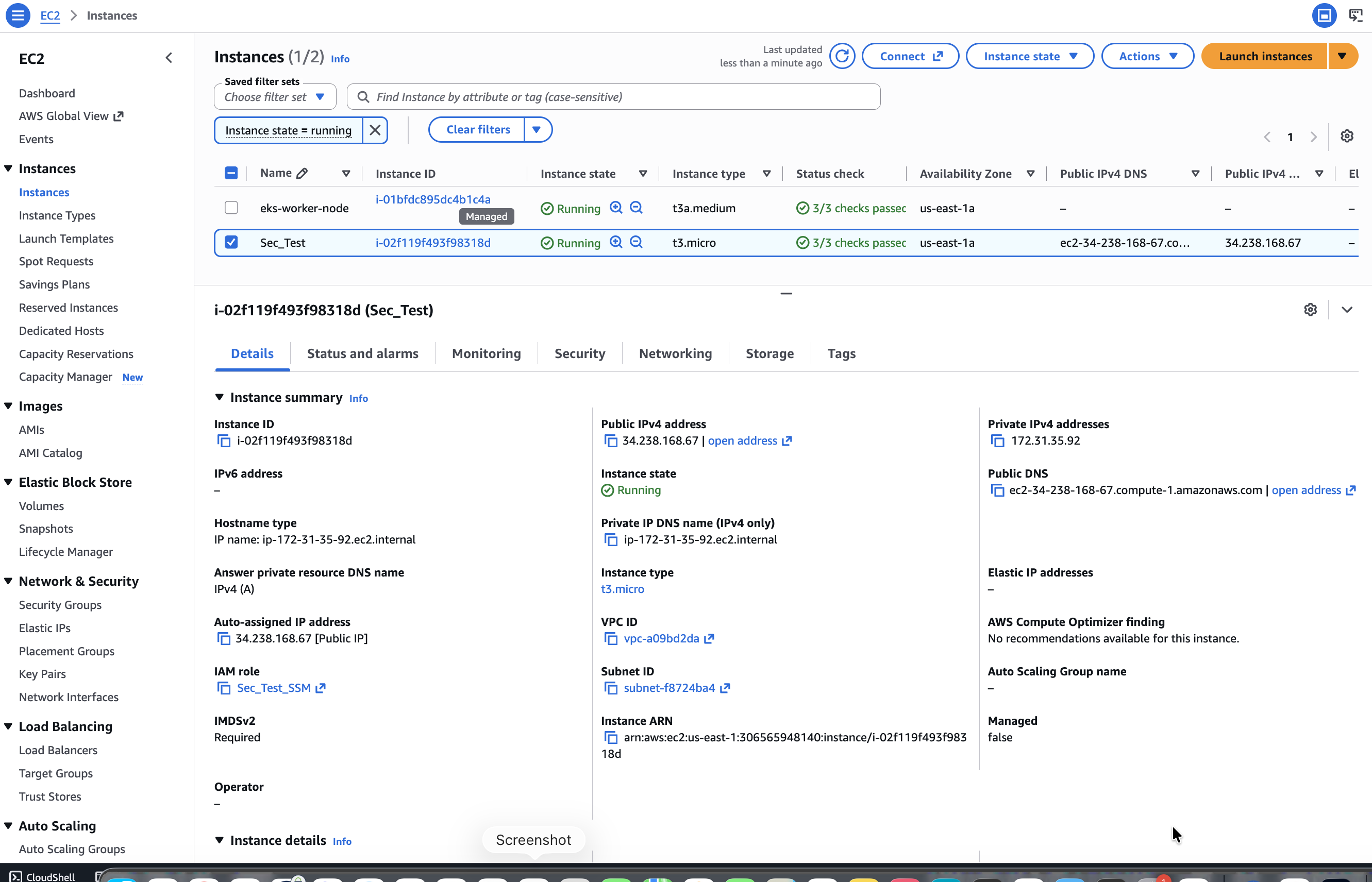
To display the Permissions Policies, select the IAM Role, and the IAM Role Edit page will be shown.
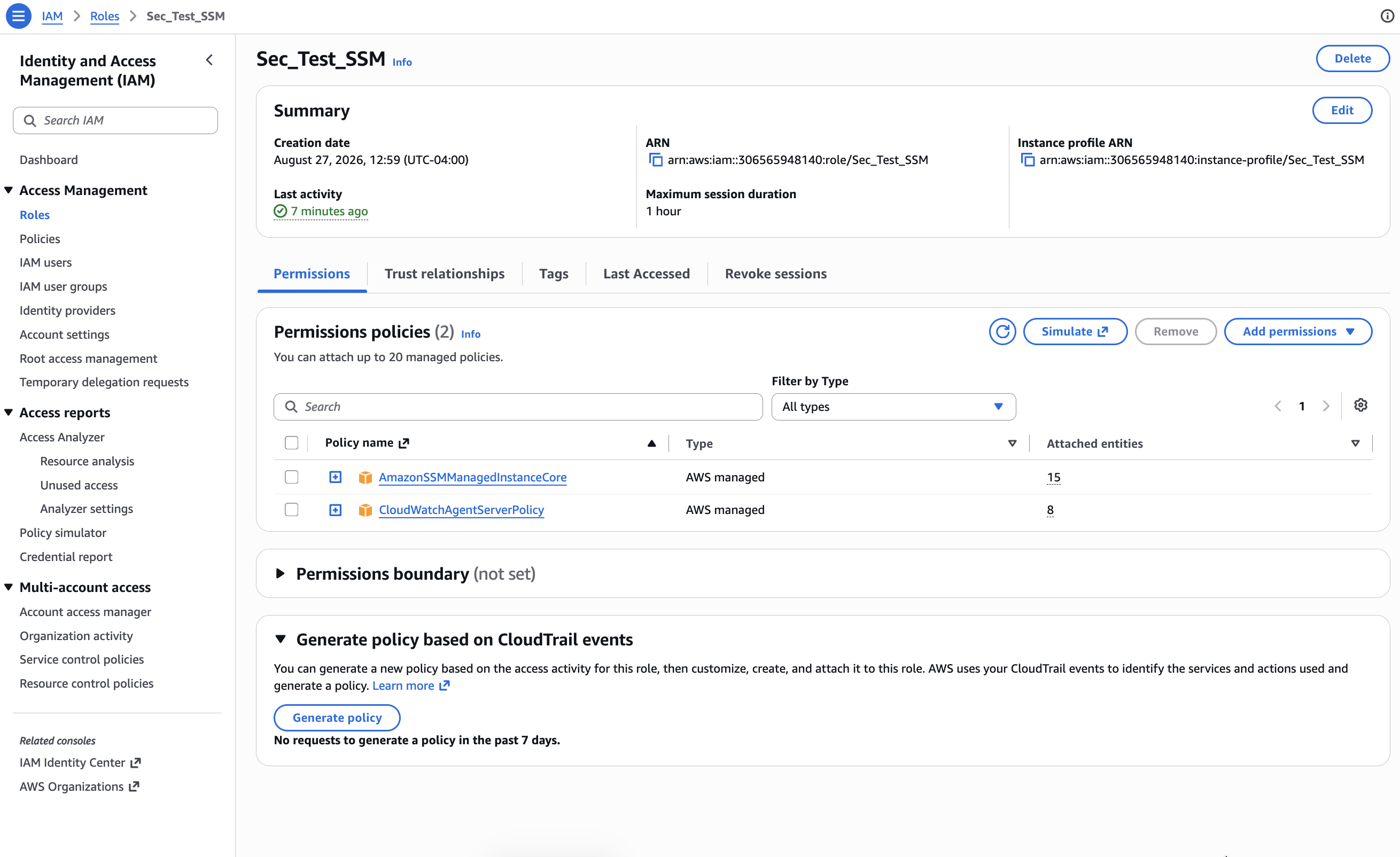
Note: The following The IAM role will be displayed with the selected AWS Permissions Policies shown. Note: The policies listed are required in order for SSM to function properly.
AmazonSSMManagedInstanceCore
CloudWatchAgentServerPolicy
AmazonSSMFullAccess (Optional - Includes all possible permissions. Not recommended for least privilege.)
To view more detailed information about each Permissions Policy, use the link next to each Policy to display the JSON definition.
...