
...
1) Determine IAM Role Status
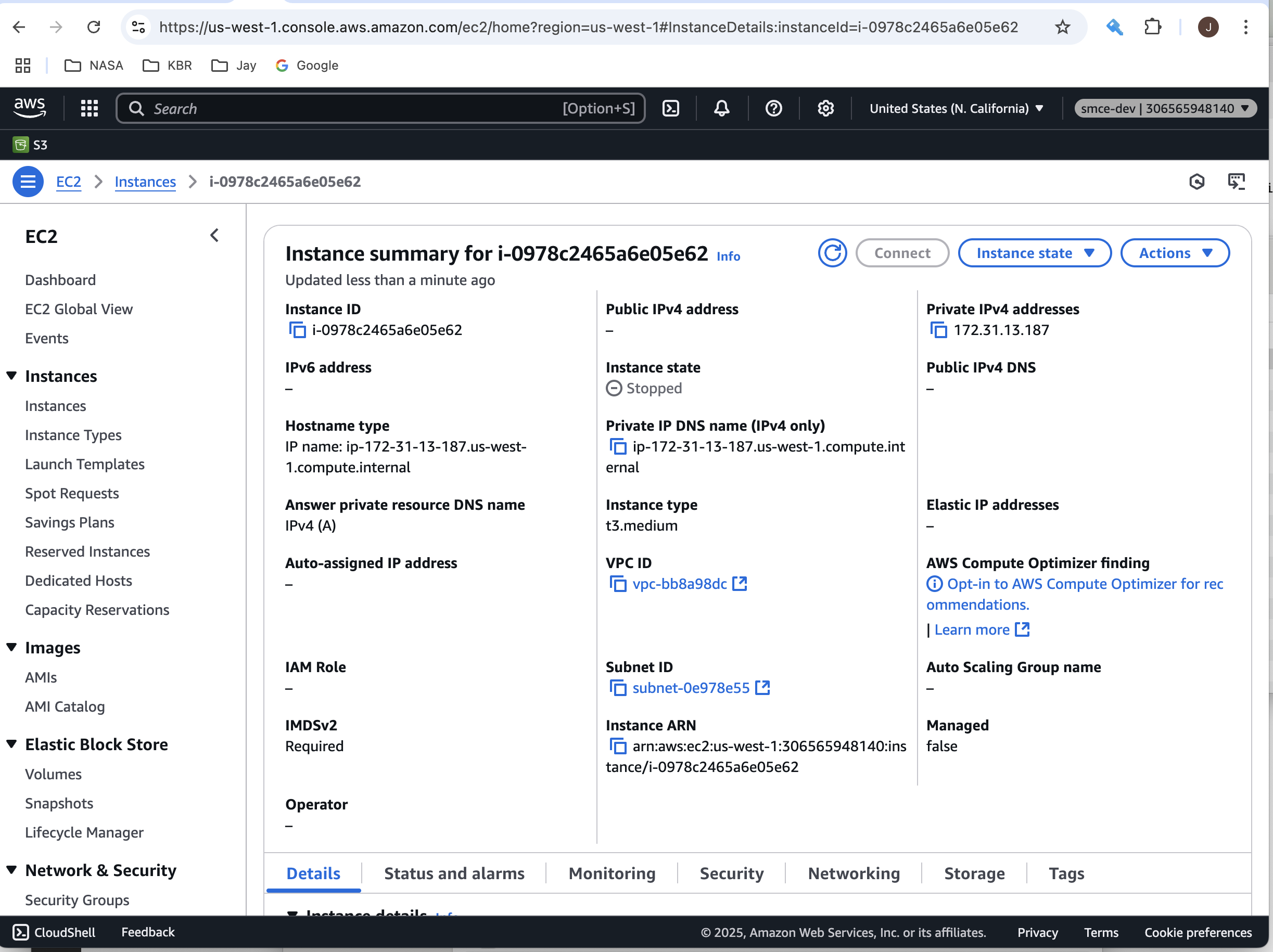
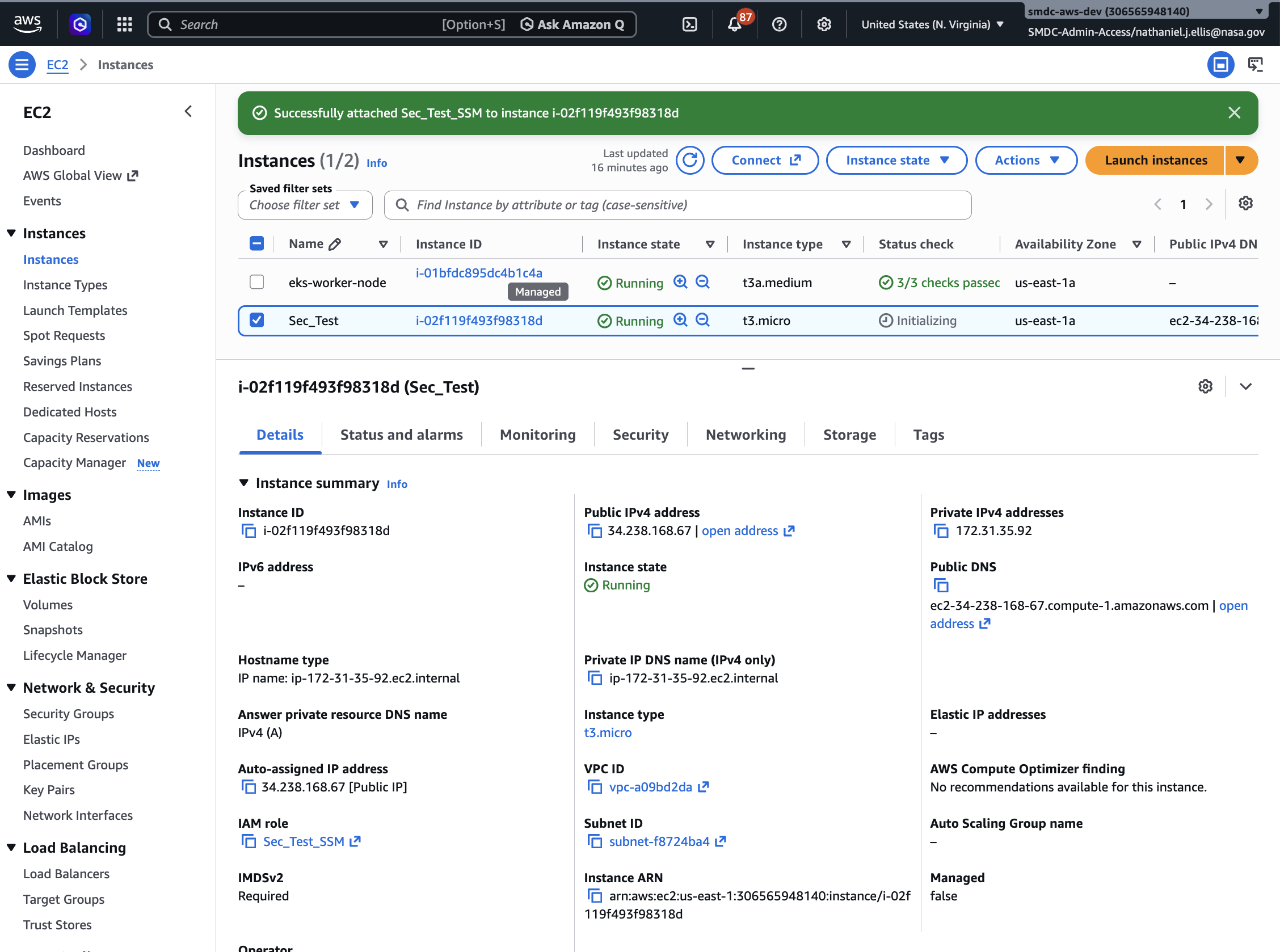
Using the AWS Console, navigate to the EC2 Instance Summary page. You can do this by entering "EC2" in the search box at top of the console, and then selecting the ID for one of your instances. Once there, the IAM Role will be shown at the bottom left of the Instance Summary page. If IAM Role is blank, follow the step 3) "Attach IAM Role instructions " instructions to attach a custom role to your instance. If an IAM role is not yet created, proceed to step 2) "Create New IAM Role".
2) Create New IAM Role
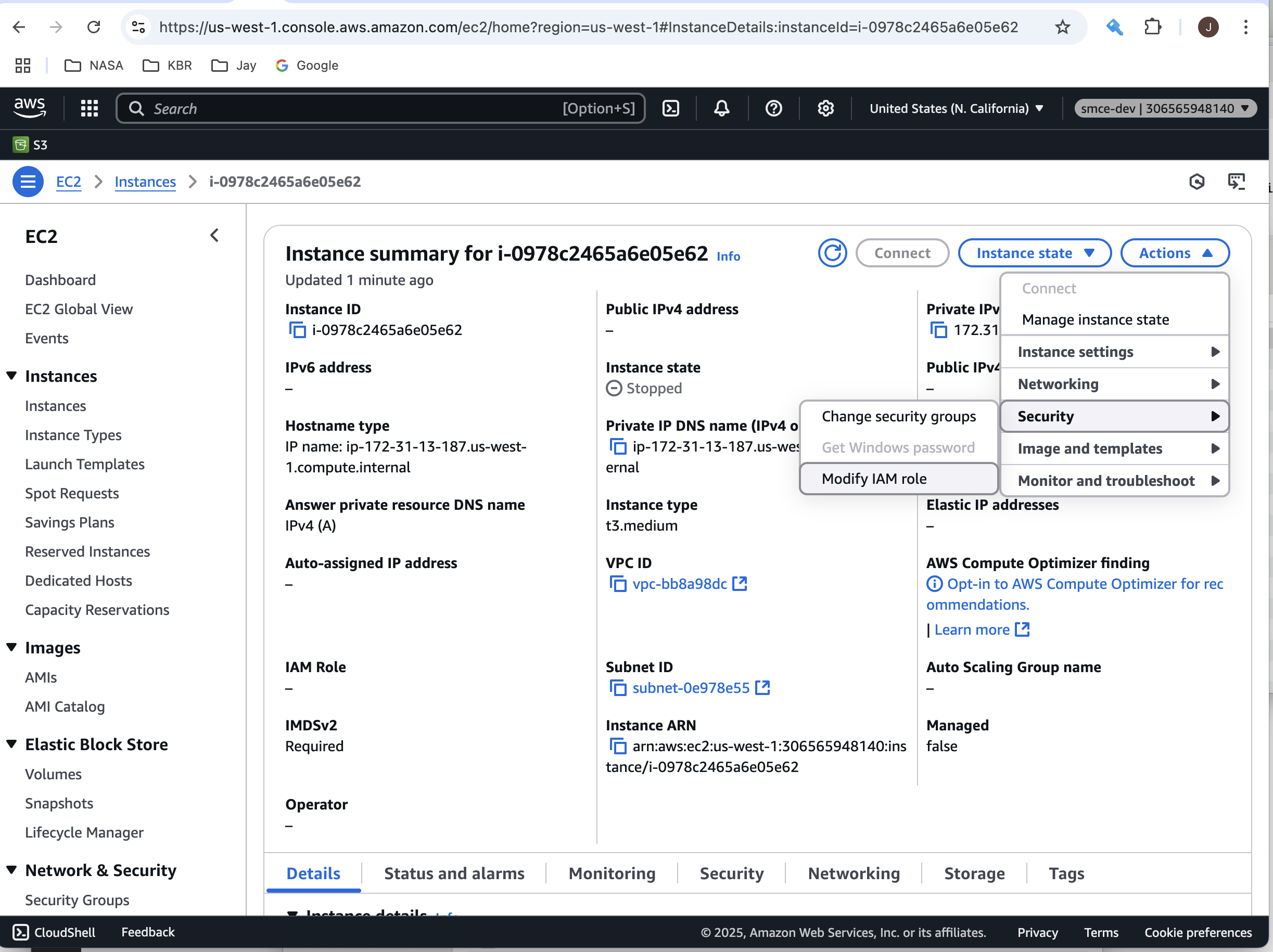
On the EC2 Instance summary page, use the Actions->Security menu at the upper right and choose Modify IAM Role.
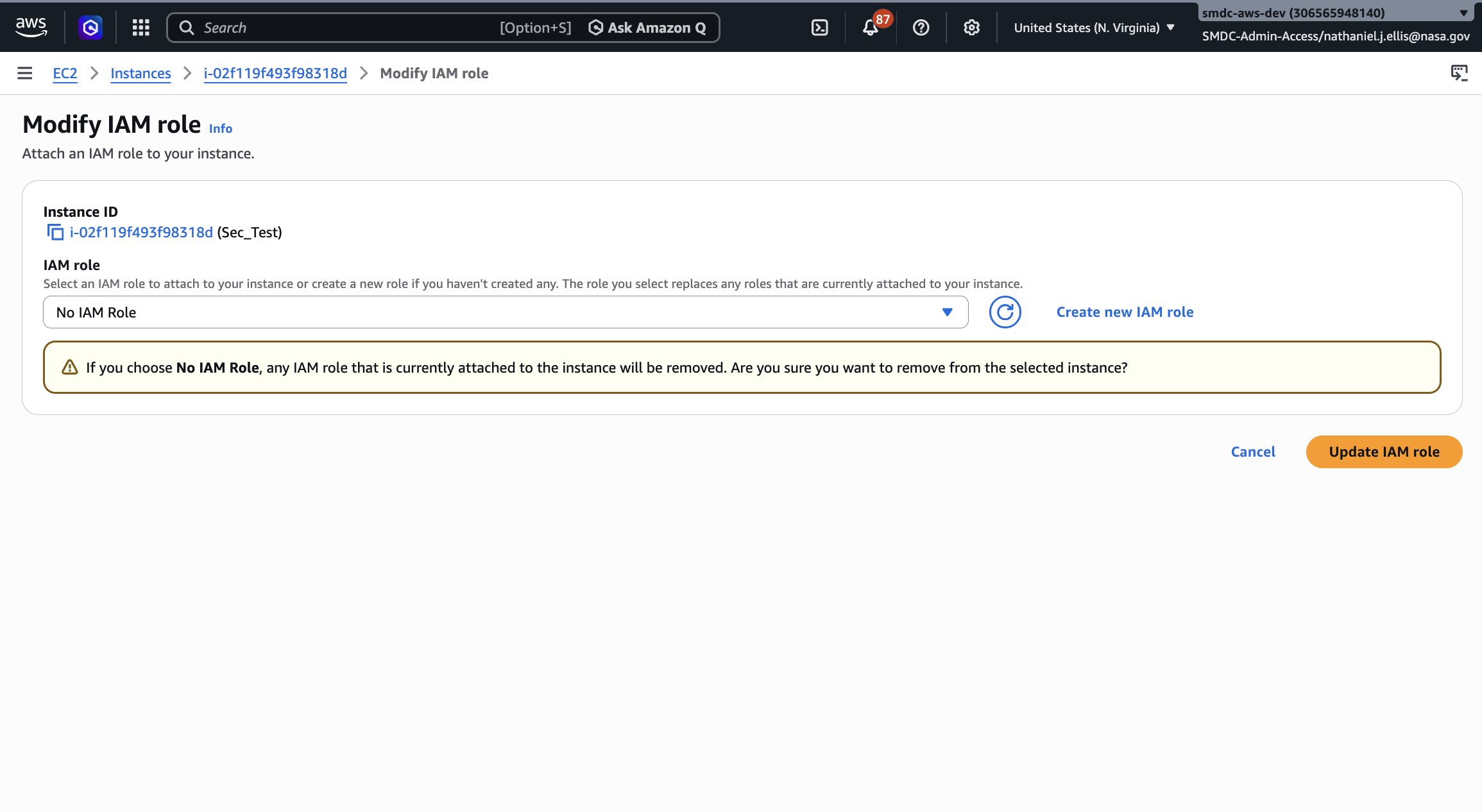
This will display the Modify IAM Role page where you'll be able to choose the Permissions Policies for your instance.. Choose the Create new IAM Role link to establish a new IAM Role for your instance.
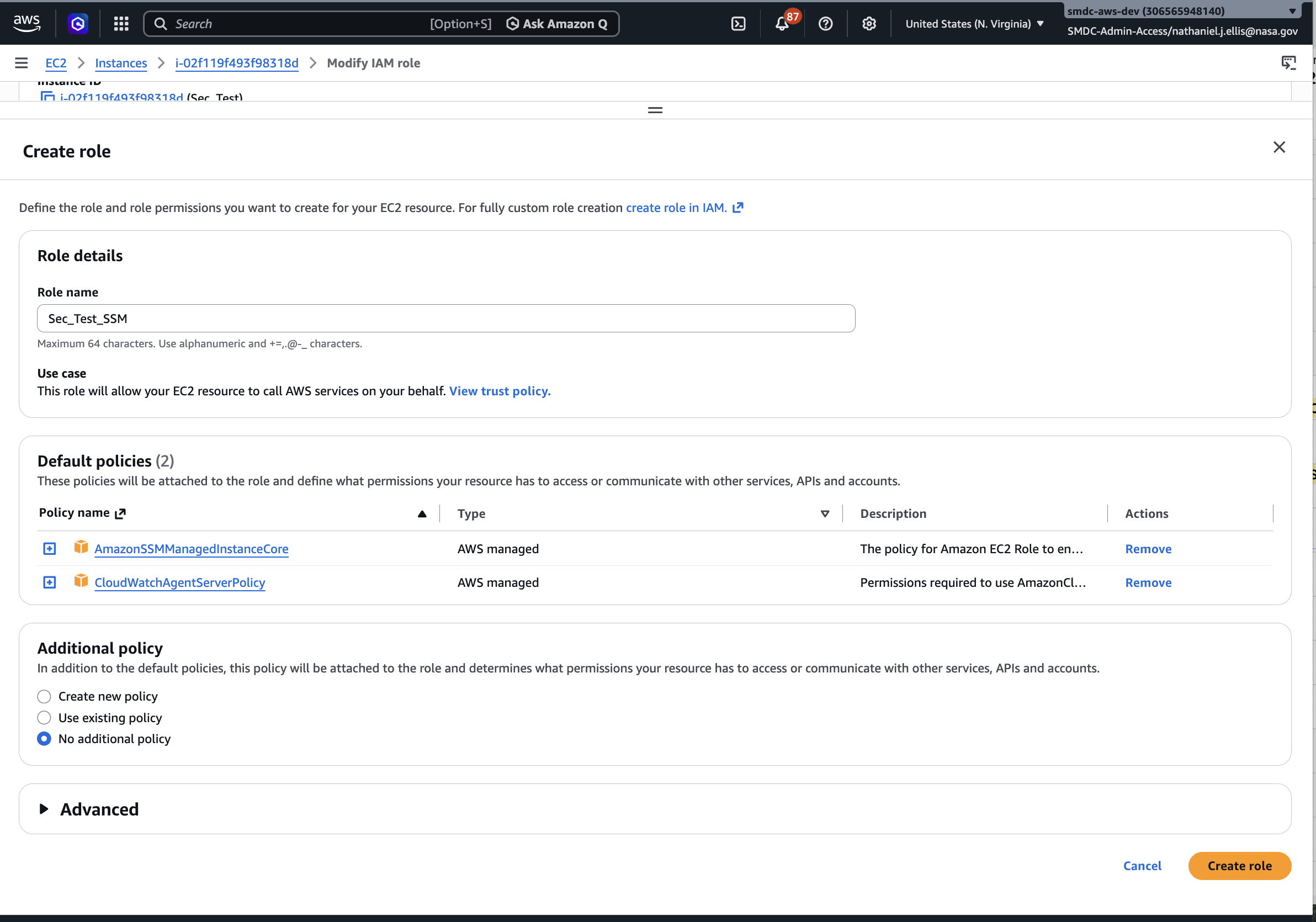
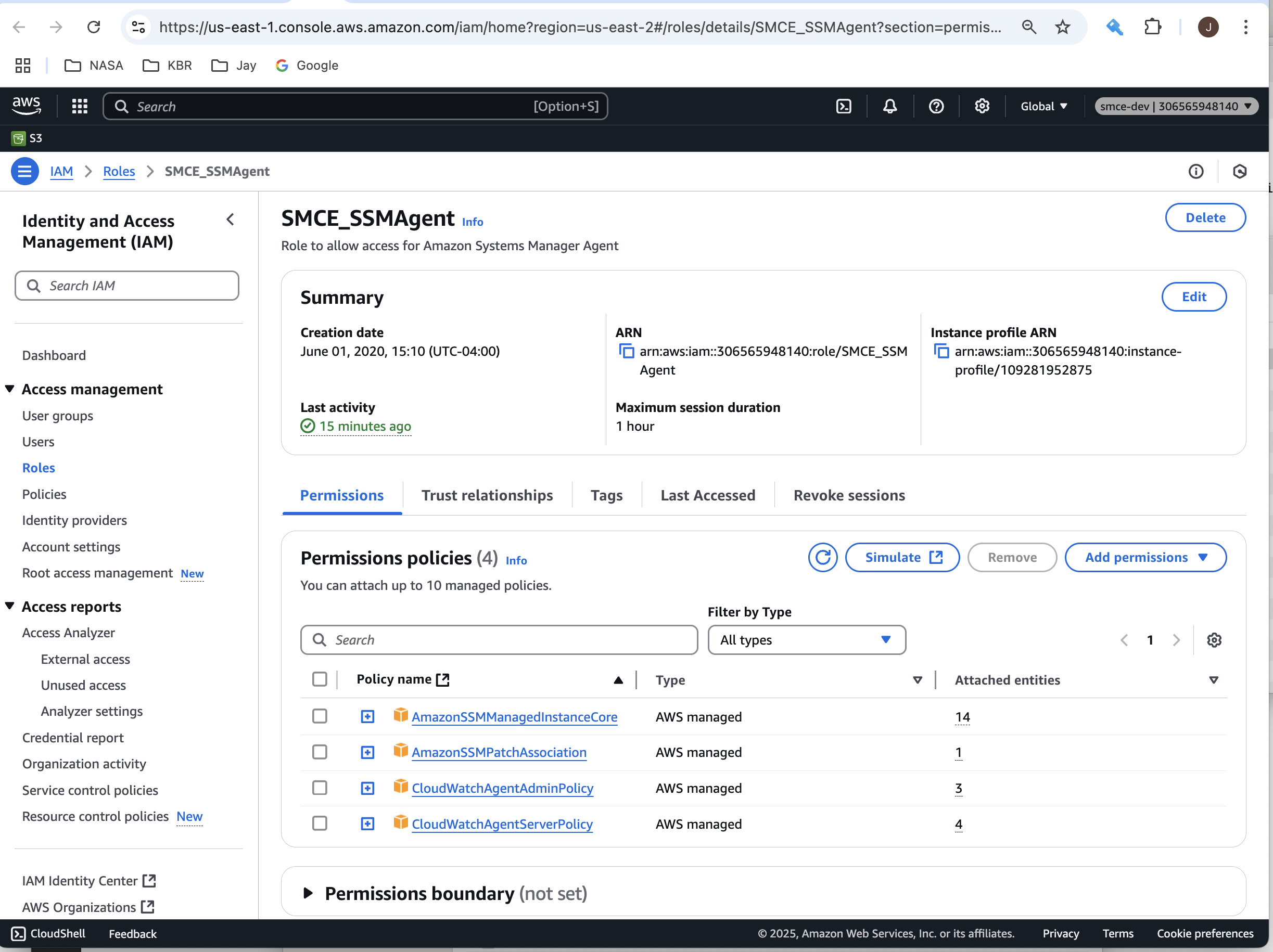
On the Create Role page, enter a new Role name, accept the default Permissions Policies of AmazonSSMManagedInstanceCore and CloudWatchAgentServerPolicy, and select the Create Role link at the bottom right to create the new role.
The new role will appear as the selected IAM Role on the Modify IAM Role page. Select the Update IAM Role link to modify the EC2 instance and select your new IAM role.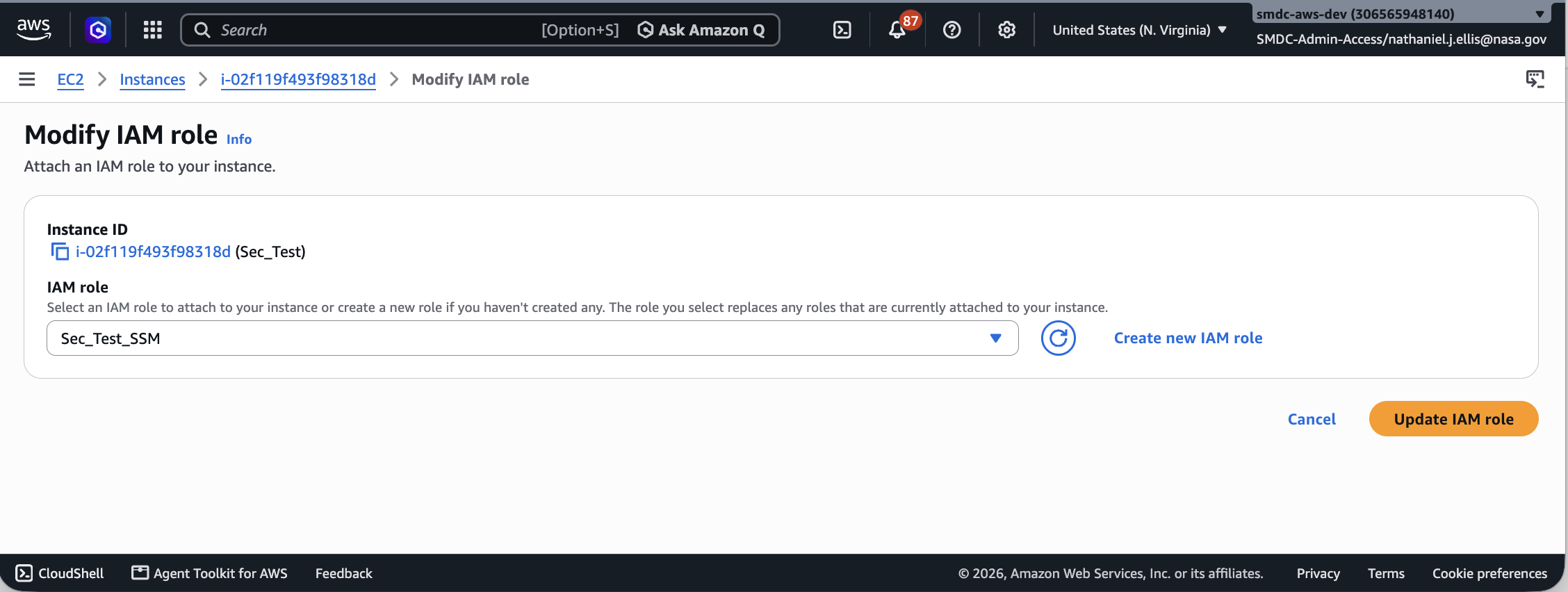
The EC2 Instance Details page will again appear with the new IAM Role shown as the selected IAM Role for the current instance.
3) Attach IAM Role
On the EC2 Instance summary page, use the Actions->Security menu at the upper right and choose Modify IAM Role.
This will display the Modify IAM Role page where you'll be able to choose a role to attach to your instance.
...